Set Up an Astro Project in 5 Minutes

You have an Astro project and don’t want to start from scratch. Here’s the fastest path from a blank page to a working website with navigation, SEO, accessibility, and a design system.
Prerequisite
An existing Astro project (v4 or v5). If you don’t have one yet:
npm create astro@latest my-project
cd my-project
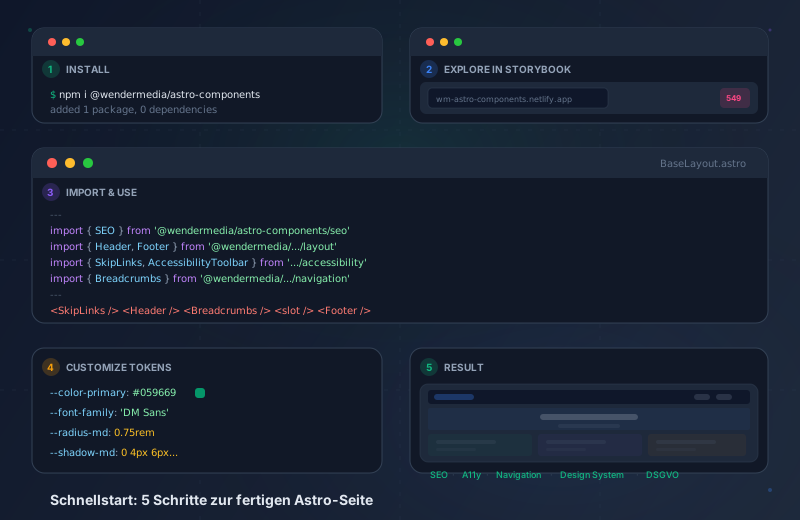
The 5 steps at a glance
From a blank page to a finished website
- Install the package
One npm command — no runtime dependencies, just .astro and .ts files.
- Explore in Storybook
Browse 549 stories with interactive controls to find the right components.
- Set up the BaseLayout
Combine SEO, Header, Footer, Breadcrumbs, and Accessibility Toolbar in one layout.
- Build pages with sections
Compose Hero, Features, FAQ, Testimonials, and CTA sections.
- Customize the design with tokens
Override CSS custom properties or use the DesignSystemProvider.
Step 1: Install
npm install @wendermedia/astro-componentsThe package has zero runtime dependencies. It only ships Astro components — .astro and .ts files that compile directly in your build process.
Step 2: Explore in Storybook
Before importing anything, open the live Storybook and see what’s available:
wm-astro-components.netlify.app
Each component’s Docs page shows:
- Props with types and defaults
- Live preview with interactive controls
- Variants (Light/Dark, different sizes, states)
- CSS custom properties the component uses
- Accessibility check via the A11y tab
Step 3: Set up the BaseLayout
A typical Astro page needs four things: SEO meta tags, basic structure, navigation, and accessibility tools. All of that goes into a central layout.
---
// src/layouts/BaseLayout.astro
import { SEO } from '@wendermedia/astro-components/seo';
import { Header, Footer } from '@wendermedia/astro-components/layout';
import { SkipLinks, AccessibilityToolbar } from '@wendermedia/astro-components/accessibility';
import { Breadcrumbs } from '@wendermedia/astro-components/navigation';

interface Props {
  title: string;
  description: string;
}

const { title, description } = Astro.props;
---

<!doctype html>
<html lang="en">
  <head>
    <SEO title={title} description={description} />
  </head>
  <body>
    <SkipLinks />
    <Header />
    <Breadcrumbs items={[{ label: 'Home', href: '/' }, { label: title }]} />
    <main id="main-content">
      <slot />
    </main>
    <Footer />
    <AccessibilityToolbar position="right" />
  </body>
</html>
What you get with 6 imports:
- <title> and <meta description> tags
- Open Graph and Twitter Card meta tags
- Skip-to-content navigation (accessibility)
- Responsive header with navigation
- Breadcrumbs with BreadcrumbList JSON-LD
- Semantic <main> region
- Responsive footer
- Accessibility toolbar (font size, contrast, focus)Six imports and you get: meta tags, skip navigation, header, footer, breadcrumbs with JSON-LD, and an accessibility toolbar with font size, contrast, and focus options.
Step 4: Build pages
With the layout in place, add page sections from the sections category:
---
// src/pages/index.astro
import BaseLayout from '../layouts/BaseLayout.astro';
import { Hero, Features, FAQ, CTA } from '@wendermedia/astro-components/sections';
import { Testimonials } from '@wendermedia/astro-components/sections';
---

<BaseLayout title="Home" description="Description">
  <Hero
    title="Headline"
    subtitle="Subheadline"
    ctaText="Get started"
    ctaHref="/contact"
  />

  <Features features={[
    { title: 'Fast', description: 'Astro ships zero JS by default.' },
    { title: 'Accessible', description: 'WCAG 2.2 AA compliant.' },
    { title: 'SEO-optimized', description: 'Structured data automatically.' },
  ]} />

  <Testimonials testimonials={[
    { quote: 'Finally a library without the overhead.', author: 'Max M.', role: 'Frontend Dev' },
  ]} />

  <FAQ items={[
    { question: 'Do I need React?', answer: 'No. Everything is pure Astro.' },
    { question: 'Does it work with Tailwind?', answer: 'Yes. CSS custom properties combine with Tailwind.' },
  ]} />

  <CTA title="Ready?" description="Start now." buttonText="Install via npm" buttonHref="https://www.npmjs.com/package/@wendermedia/astro-components" />
</BaseLayout>
Step 5: Customize the design
Components ship with neutral default tokens. For custom branding, there are two approaches:
---
// Option A: DesignSystemProvider
import { DesignSystemProvider } from '@wendermedia/astro-components/design-system';
---

<DesignSystemProvider
  primaryColor="#059669"
  secondaryColor="#0284c7"
  fontFamily="'DM Sans', sans-serif"
  borderRadius="0.75rem"
/>
/* Option B: CSS custom properties directly in global.css */
:root {
--color-primary-500: #059669;
--color-secondary-500: #0284c7;
--font-family-body: 'DM Sans', sans-serif;
--radius-md: 0.75rem;
--shadow-md: 0 4px 6px rgba(0,0,0,0.1);
--space-section-md: 4rem;
}Both approaches are equivalent. The provider is more convenient, custom properties give more control.
Import paths for all 17 categories
| Category | Import path | Count |
|---|---|---|
| Accessibility | @wendermedia/astro-components/accessibility | 12 |
| Content | @wendermedia/astro-components/content | 4 |
| Design System | @wendermedia/astro-components/design-system | 1 |
| E-Commerce | @wendermedia/astro-components/ecommerce | 5 |
| Forms | @wendermedia/astro-components/forms | 6 |
| Gallery | @wendermedia/astro-components/gallery | 3 |
| Images | @wendermedia/astro-components/images | 4 |
| Layout | @wendermedia/astro-components/layout | 3 |
| Layouts | @wendermedia/astro-components/layouts | 15 |
| Maps | @wendermedia/astro-components/maps | 2 |
| Media | @wendermedia/astro-components/media | 3 |
| Navigation | @wendermedia/astro-components/navigation | 4 |
| Products | @wendermedia/astro-components/products | 2 |
| SEO | @wendermedia/astro-components/seo | 8 |
| Sections | @wendermedia/astro-components/sections | 68 |
| Social | @wendermedia/astro-components/social | 3 |
| UI | @wendermedia/astro-components/ui | 19 |
CLI tool for new projects
If you want to start a completely new project, use the CLI tool:
npx create-wm-componentEight templates to choose from: Blog, E-Commerce, Landing Page, Portfolio, Corporate, Docs, SaaS, and Affiliate. Each template sets up the right components, layouts, and design tokens.
Common setup questions
Setup FAQ
No. All 150 components are pure Astro — .astro files and CSS custom properties. Interactive elements use vanilla JavaScript. No framework required.
Yes. Astro v4 and v5 are fully supported. Components do not use experimental APIs.
Yes. Just run npm install and import components. No refactoring of existing code needed.
npm update @wendermedia/astro-components — the library follows SemVer. Breaking changes only in major versions.
Yes. Components use CSS custom properties that combine with Tailwind classes. No conflicts.
The Storybook at wm-astro-components.netlify.app shows all 150 components with live preview, props table, and interactive controls. Sorted alphabetically by category.
All components have TypeScript interfaces for props. Autocomplete and type checking work out of the box.
The library has zero runtime dependencies. Since Astro only compiles imported components, only the components you actually use end up in the build.
Next step
Open the Storybook, pick a component, and drop it in. Every Docs page shows the import path, props, and a live preview.
- Storybook: wm-astro-components.netlify.app
- npm:
@wendermedia/astro-components - GitHub: arnoldwender/wm-project-astro-components