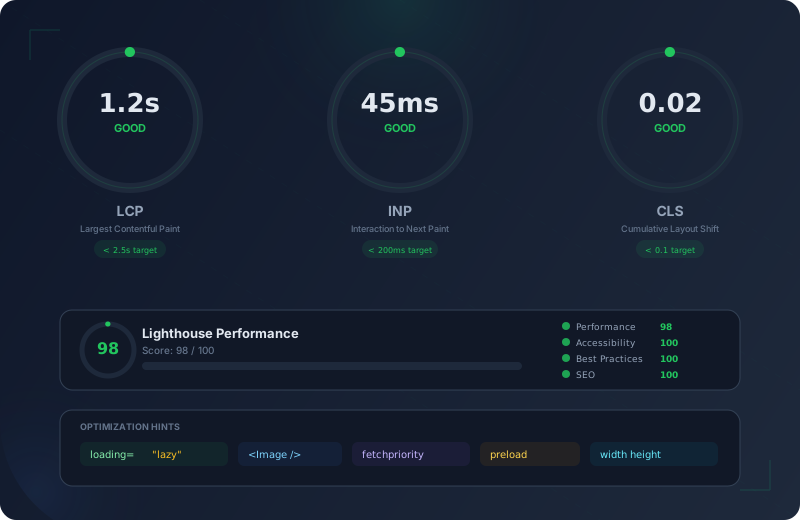
Building for Performance: The Complete Core Web Vitals Guide

Performance is a core feature, not an afterthought. Even small delays measurably hurt conversion — Portent’s 2019 site speed study found that pages loading in 1 second have 3x the conversion rate of pages loading in 5 seconds. And since 2021, Google uses Core Web Vitals as a direct ranking signal — slow sites literally rank lower.
This guide covers everything you need to achieve excellent scores: the three metrics Google measures, the architectural decisions that make Astro uniquely fast, and the specific optimization techniques for images, CSS, JavaScript, fonts, and third-party scripts.
Performance is not a technical problem. It is a design constraint that affects every decision you make.
Core Web Vitals: The Three Metrics
Google measures three specific metrics that represent the user experience of loading, interactivity, and visual stability.
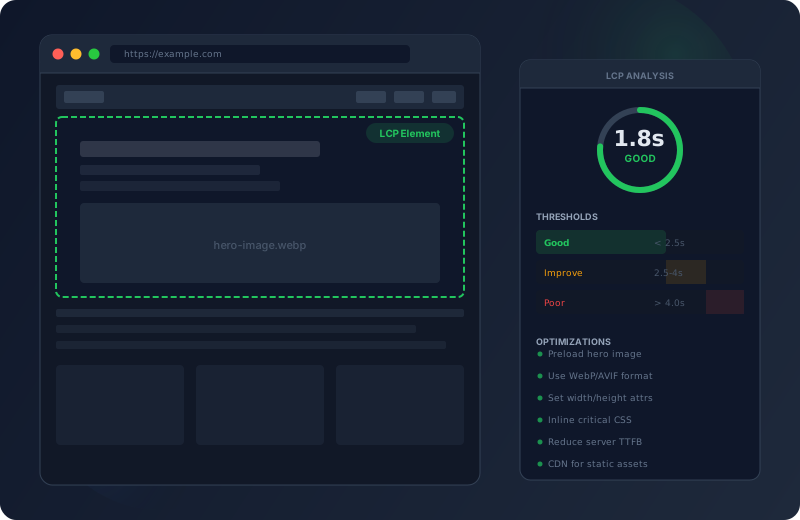
Measures how quickly the largest visible element (hero image, headline, video thumbnail) appears on screen. Target: under 2.5 seconds. This is the metric users feel most — it determines how fast the page "looks loaded." The LCP element is typically a hero image, a large heading, or a background video poster.
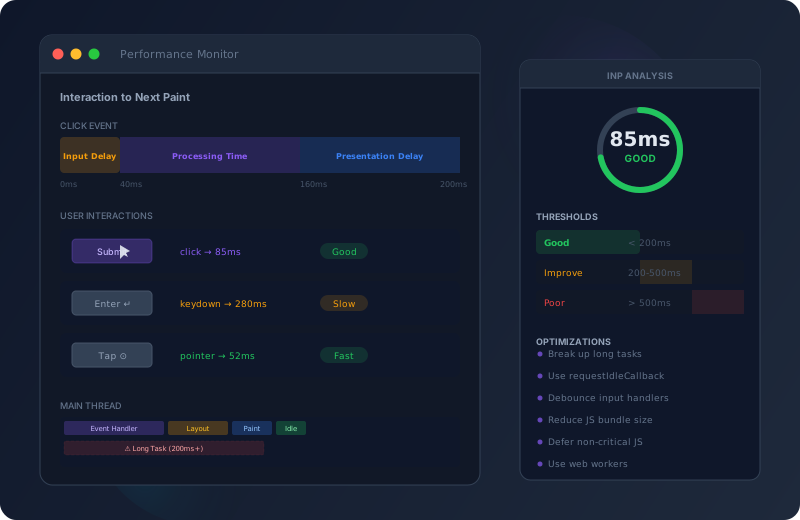
Measures responsiveness — how quickly the page reacts to user input (clicks, taps, keypresses). Target: under 200 milliseconds. INP replaced FID in March 2024 because it measures ALL interactions throughout the page lifecycle, not just the first one. Heavy JavaScript is the primary enemy of good INP scores.
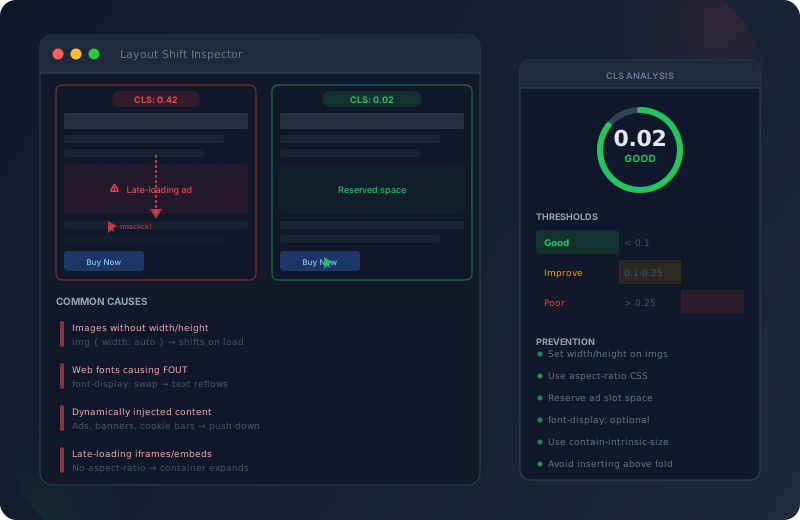
Measures visual stability — how much the page content shifts unexpectedly during loading. Target: under 0.1. Nothing frustrates users more than clicking a button and having the page jump, causing them to click something else. Images without dimensions, late-loading fonts, and injected ads are the main culprits.
Why Astro is Built for Performance
Astro’s architecture is fundamentally different from React, Next.js, or Nuxt. It ships zero JavaScript by default. Every page is rendered to static HTML at build time, with no hydration overhead.
| Framework | Default JS Recommended | Hydration | LCP Impact |
|---|---|---|---|
| Astro (static) | 0 KB | None (static HTML) | Excellent |
| Astro (islands) | Per-island only | Selective | Excellent |
| Next.js (App Router) | 85-120 KB | Full page | Good |
| Nuxt 3 | 70-100 KB | Full page | Good |
| Create React App | 150-250 KB | Full page | Poor |
| WordPress (average) | 200-400 KB | Plugin-dependent | Poor |
Astro’s island architecture means interactive components (a form, a carousel, a search) are hydrated individually. The rest of the page — header, footer, content, navigation — stays as pure HTML. This is why Astro sites consistently score 95-100 on Lighthouse without any optimization effort.
LCP Optimization
The Largest Contentful Paint is usually the biggest challenge. Here are the strategies ranked by impact:
Identify your LCP element (usually hero image). Preload it with <link rel="preload">. Serve it in WebP/AVIF. Set explicit width/height. Never lazy-load the LCP image.
Inline critical CSS (above-the-fold styles). Defer non-critical stylesheets. Remove unused CSS. Use <link rel="preconnect"> for external origins.
Use a CDN (Netlify, Vercel, Cloudflare). Enable compression (Brotli > gzip). Set far-future cache headers for static assets.
Use font-display: swap. Preload critical font files. Subset fonts to needed characters. Self-host instead of Google Fonts for fewer connections.
Image Optimization Deep Dive
Images are the LCP element on 70% of web pages. Getting them right has the single biggest impact on perceived performance.
---
/* Astro's built-in Image component handles optimization */
import { Image } from 'astro:assets';
import heroImage from '../assets/hero.jpg';
---
<!-- Automatic WebP/AVIF, responsive srcset, width/height -->
<Image
  src={heroImage}
  alt="Hero image description"
  widths={[400, 800, 1200]}
  sizes="(max-width: 768px) 100vw, 1200px"
  loading="eager"
  fetchpriority="high"
/>
<!-- Manual responsive image with art direction -->
<picture>
<source
type="image/avif"
srcset="/images/hero-400.avif 400w,
/images/hero-800.avif 800w,
/images/hero-1200.avif 1200w"
sizes="(max-width: 768px) 100vw, 1200px"
/>
<source
type="image/webp"
srcset="/images/hero-400.webp 400w,
/images/hero-800.webp 800w,
/images/hero-1200.webp 1200w"
sizes="(max-width: 768px) 100vw, 1200px"
/>
<img src="/images/hero-800.jpg" alt="Hero" width="1200" height="630"
loading="eager" fetchpriority="high" decoding="async" />
</picture><!-- In <head>: preload the LCP image for fastest delivery -->
<link
rel="preload"
as="image"
type="image/webp"
href="/images/hero-1200.webp"
imagesrcset="/images/hero-400.webp 400w,
/images/hero-800.webp 800w,
/images/hero-1200.webp 1200w"
imagesizes="(max-width: 768px) 100vw, 1200px"
fetchpriority="high"
/>INP Optimization
Interaction to Next Paint measures how responsive your page feels. Every click, tap, and keypress is evaluated.
The primary cause of poor INP is too much JavaScript on the main thread. Every KB of JS must be parsed, compiled, and executed before the browser can respond to user input. Astro’s zero-JS default solves this for most pages. For interactive islands, keep each island under 50 KB. Use dynamic imports for heavy components: client:visible hydrates only when the component scrolls into view.
Long-running JavaScript blocks the main thread. If a function takes 300ms, the browser cannot respond to clicks during that time. Break long tasks into smaller chunks using requestAnimationFrame() or setTimeout(0). This yields control back to the browser between chunks, keeping interactions snappy. The goal: no individual task should exceed 50ms.
Search inputs, filter controls, and scroll handlers fire events rapidly. Without debouncing, each keystroke triggers expensive operations (DOM queries, re-renders, API calls). Debounce input handlers with 150-300ms delays. Use requestAnimationFrame() for scroll handlers. This dramatically reduces the work the browser must do per interaction.
JavaScript Budget
| Resource | Budget | Impact Recommended |
|---|---|---|
| Total JS per route | < 170 KB gzipped | INP + LCP |
| Individual island | < 50 KB gzipped | INP |
| Third-party scripts | < 50 KB total | INP + LCP |
| Main thread work | < 50ms per task | INP |
| Total blocking time | < 200ms | INP (lab proxy) |
CLS Optimization
Layout shifts happen when visible elements change position after the initial render. They are the most frustrating performance problem from a user perspective. A well-structured design token system helps prevent CLS by enforcing consistent spacing, font metrics, and layout constraints across every component.
Eliminating Layout Shifts
- Always set image dimensions
Every <img> and <video> must have explicit width and height attributes (or CSS aspect-ratio). The browser reserves the correct space before the asset loads, preventing shifts.
- Use font-display: swap wisely
While swap avoids invisible text, the font swap itself can cause a layout shift if the fallback and web font have different metrics. Use the CSS size-adjust property on your @font-face to match the fallback font metrics closely.
- Reserve space for dynamic content
Ads, embeds, cookie banners, and lazy-loaded components must have a defined min-height or aspect-ratio before they load. Never inject content above existing content without user interaction.
- Avoid top-injected banners
A cookie consent banner that pushes the page down causes a massive CLS spike. Use fixed/sticky positioning or overlay patterns that do not displace existing content.
- Animate with transform only
CSS properties like top, left, width, and height trigger layout recalculations. Use transform: translateX/Y and opacity for animations. These are composited on the GPU and never cause layout shifts.
CSS Performance Strategy
<!-- Inline critical CSS: styles needed for above-the-fold content -->
<style>
  /* Base reset, layout, header, hero, typography */
  /* Keep under 14 KB (one TCP round-trip) */
  :root { --color-bg: #f9fafb; --color-text: #111827; }
  body { font-family: system-ui; color: var(--color-text); }
  .header { display: flex; align-items: center; }
  .hero { min-height: 60vh; }
</style>
<!-- Defer non-critical CSS with media print trick -->
<link
rel="stylesheet"
href="/styles/below-fold.css"
media="print"
onload="this.media='all'"
/>
<noscript>
<link rel="stylesheet" href="/styles/below-fold.css" />
</noscript>/* Optimized font loading with metric overrides */
@font-face {
font-family: 'Inter';
src: url('/fonts/inter-var.woff2') format('woff2');
font-weight: 100 900;
font-display: swap;
size-adjust: 107%; /* match fallback metrics */
ascent-override: 90%;
descent-override: 22%;
line-gap-override: 0%;
}Performance Measurement Workflow
Knowing what to measure and how to measure it is half the battle. Use lab tools for debugging and field data for the truth.
Lighthouse (Chrome DevTools, CI): synthetic tests in controlled conditions. Great for identifying specific problems. Run in incognito mode, with no extensions, on a throttled connection (Slow 4G). Focus on the Performance score breakdown, not just the overall number. WebPageTest gives filmstrip comparisons, waterfall charts, and multi-step testing.
Chrome UX Report (CrUX): real user data collected from Chrome users who opted in. This is what Google actually uses for ranking. Access via PageSpeed Insights, Search Console, or the CrUX API. Field data reflects your actual users on their actual devices and connections — it is the ground truth.
Set up automated Lighthouse CI in your deployment pipeline. Every PR runs a performance audit. Set budgets: LCP under 2.5s, INP under 200ms, CLS under 0.1, total JS under 170 KB. Fail the build if budgets are exceeded. Monitor CrUX data monthly via Search Console to catch regressions in real-world performance.
The Performance Checklist
WebP/AVIF formats. Explicit dimensions. Responsive srcset. Eager-load LCP. Lazy-load below-fold.
Self-hosted WOFF2. font-display: swap. Preload critical fonts. size-adjust for CLS prevention.
Inline critical CSS. Defer non-critical. Under 50 KB critical path. No unused styles.
Under 170 KB per route. Islands for interactivity. Dynamic imports. No main thread blocking.
CDN delivery. Brotli compression. Cache headers. Preconnect external origins.
Lighthouse CI in pipeline. CrUX field data monthly. Performance budgets enforced.
Common Mistakes
Frequently Asked Questions
Lighthouse runs on your fast developer machine with a simulated throttle. Real users are on 3-year-old Android phones on 3G connections. Always check CrUX field data (via PageSpeed Insights or Search Console). The 75th percentile of real users is what Google uses for ranking — not your local Lighthouse score.
No. The LCP image (usually the hero) must be eager-loaded with fetchpriority="high". Only lazy-load images that are below the fold — images the user will not see until they scroll. Lazy-loading the LCP image adds 200-500ms to your LCP time.
Astro gives you an excellent baseline (zero JS, static HTML, scoped CSS). But you can still have a slow site with unoptimized images, too many third-party scripts, render-blocking stylesheets, or a slow hosting provider. Astro handles the framework-level performance — you handle the content-level performance.
Significantly. A static site on a CDN (Netlify, Vercel, Cloudflare Pages) has a TTFB of 20-50ms globally. The same site on a single-region shared host can have 200-800ms TTFB. For static Astro sites, always use a CDN. The difference is often 500ms+ on LCP.
Performance Timeline: Optimization Order
Enable CDN + compression. Add explicit image dimensions. Self-host fonts with font-display: swap. Remove unused CSS/JS. This alone gets most sites into the "Good" band.
Convert images to WebP/AVIF. Generate responsive srcset. Preload LCP image. Lazy-load below-fold images. This phase typically saves 1-3 seconds on LCP.
Audit third-party scripts. Replace heavy libraries with lighter alternatives. Use Astro islands with client:visible for deferred hydration. Set and enforce JS budgets.
Set up Lighthouse CI in deployment pipeline. Monitor CrUX data monthly. Create performance budgets. Catch regressions before they reach users.